



Mostrar mensagens com a etiqueta Microsoft. Mostrar todas as mensagens
Mostrar mensagens com a etiqueta Microsoft. Mostrar todas as mensagens
After a long time here are some powerpoint templates for presentatios that someone had asked me to put online, so after a couple of weeks here they are, or ate least the one´s that i´ve not lost while they were offline consuming space in my hard drive.
Any question or idea please send me a reply or email, thanks.
From microsoft!
 Microsoft templates
Also:
"
5 Free PowerPoint Templates to Get You Started
To save you some time, I dug through the PowerPoint templates on the Microsoft site. I think that they could be the starting point for some nice elearning templates.- Chalkboard: you can’t go wrong with a chalkboard template especially when it has a bunch of layouts.

- Theme Gallery: simple, yet clean layout with a few different slides from which to choose. Good way to learn to use the PowerPoint shapes to create templates. This also works great when you want to apply your own color scheming.

- Interactive Progress Meter: the template is designed to measure fund raising progress but could easily be adapted to some sort of course progress meter or as a simple game-like measure.

- Retro TV: the retro television is a great asset. Put your own pictures or videos behind the image of the television set.

- Bull’s Eye: nothing real fancy about this template, but I like the bright colors. Plus, there are so many applications for bull’s eye targets in elearning it doesn’t hurt to have at least one stand by template, even if it is real simple.

- 10 Question Pop Quiz: comes with a classroom background slide and the pop quiz structure’s a good way to learn to use the selection pane and click and reveal triggers in PowerPoint. Probably works better for PowerPoint than rapid elearning, though.

Also, don’t forget to take advantage of the free PowerPoint and Storyline templates in the Elearning Heroes community." (Copied from this blog at 13 june, 2012)
Ps, here are some extra tips from Seths Blog (How to make graphs that work).
Etiquetas:
application,
Elearning blog,
HTML,
Internet,
Microsoft,
photo,
photos,
powerpoint,
presentatios,
Seths,
tips,
windows


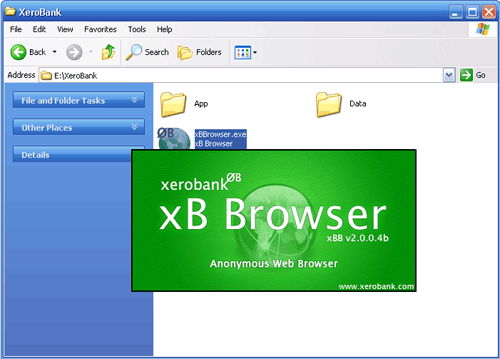
Como vocês sabem, ou deveriam saber, todos os programas de navegação informam os sítios que os visitamos, embora seja apenas o nosso "IP", em termos reais seria o nosso BI, embora por vezes existam casos em que o nosso histórico de navegação também seja partilhado, entre outras coisas, uma das formas que conheço que evita que isto aconteça é utilizar este navegador:
https://xerobank.com/
Podem ainda fazer um teste nesta página (https://xerobank.com/tools/anonymity-checker/) para verem quais são as informações que os sítios retêm de vocês.

Para navegar em segurança pode-se utilizar o Safespace, esta ferramenta de momento ainda é gratuita mas pelo andar do tempo deve começar a ser cobrado, como muitas ferramentas já foram.
Algumas coisas que é necessário saber é que se usares o Windows XP tens de ter instalado o "Net Framework 2.0", caso não tenhas podes fazer o download aqui (http://www.microsoft.com/downloads/pt-pt/). Um outro assunto é que após reiniciar carrega duas vezes no ícone do Safe space, e algumas dicas que posso dar são:
-Em "Home" vê as aplicações protegidas
-Em "Privacy" podes conhecer as pastas de disco sob vigilância
-Em "Aplications" podes conhecer as aplicações protegidas e adicionar mais em "Add".
-O "Purge Safe Space" apaga todas as alterações e permite que tudo fique limpo
-Quando estas a navegar usando aplicações seguras irás ver uma barra vermelha à volta, que poderás alterar a cor.
Por agora fico-me por aqui e algumas questões é só colocar.
Até à próxima.

Subscrever:
Mensagens (Atom)